
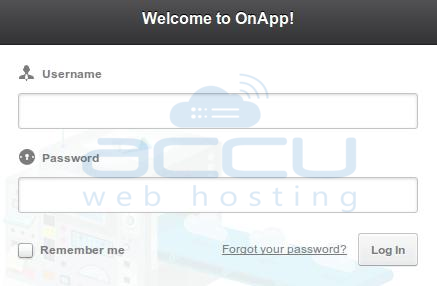
- Login to OnApp control panel with the provided login details.
- After successful login, you will see your Dashboard.

- Click on Stats option from left pane.

- Click on Cloud Usage option.
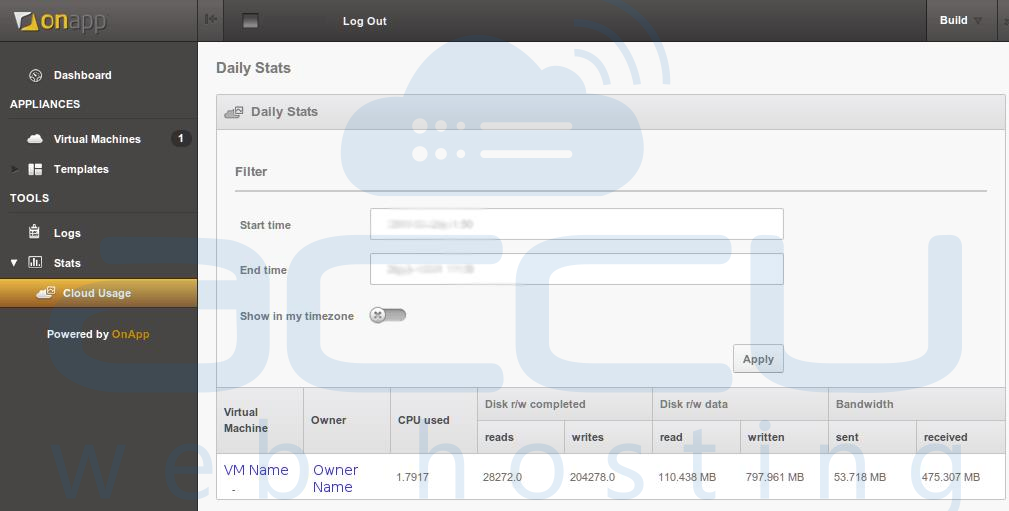
- You will see a table containing following details:
- Virtual Machine - VM name.
- Owner - Username of Owner.
- CPU used - Average CPU usage of last 72 hours or specified period.
- Disk reads completed - the number of read operations performed by the disk.
- Disk writes completed - the number of write operations performed by the disk.
- Disk data read - data read amount from a disk.
- Disk data written - data write amount to a disk.
- Bandwidth sent - the number of Bytes sent by particular VM.
- Bandwidth received - the number of Bytes received by particular VM.
- If you don’t specify any time range, the state will show you statistics of last 72 Hours. For viewing data for particular time range, select specific Start time and End time and click on Apply button.

You can view your bandwidth usage by performing following steps: