
- Login to your Helm Control Panel.
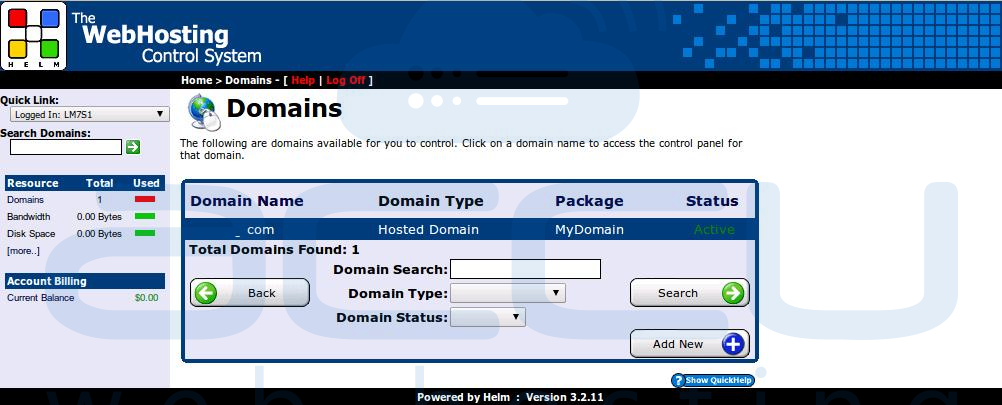
- Click on Domains.

- From Domains screen, click a domain for which you need to take database backup.
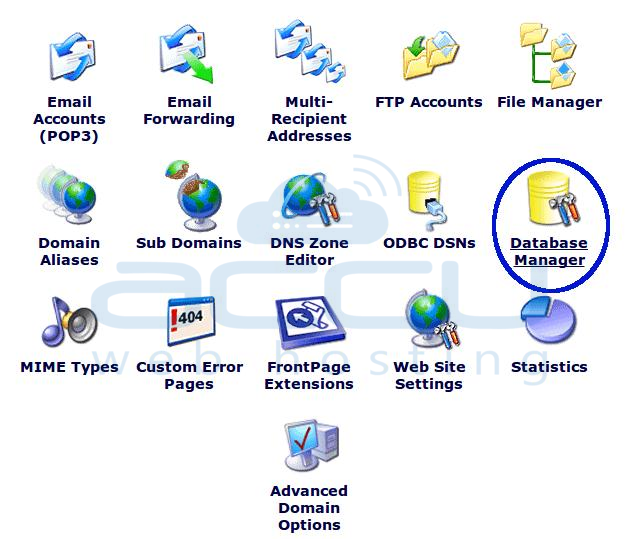
- Select Database Manager option.
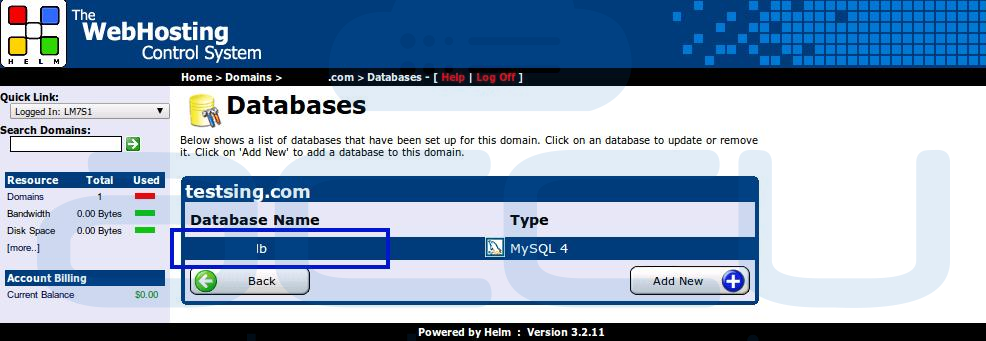
- From Databases screen, select database name for which you need to take backup.
- Click on Click Here to Access phpMyAdmin link as displayed in following image:
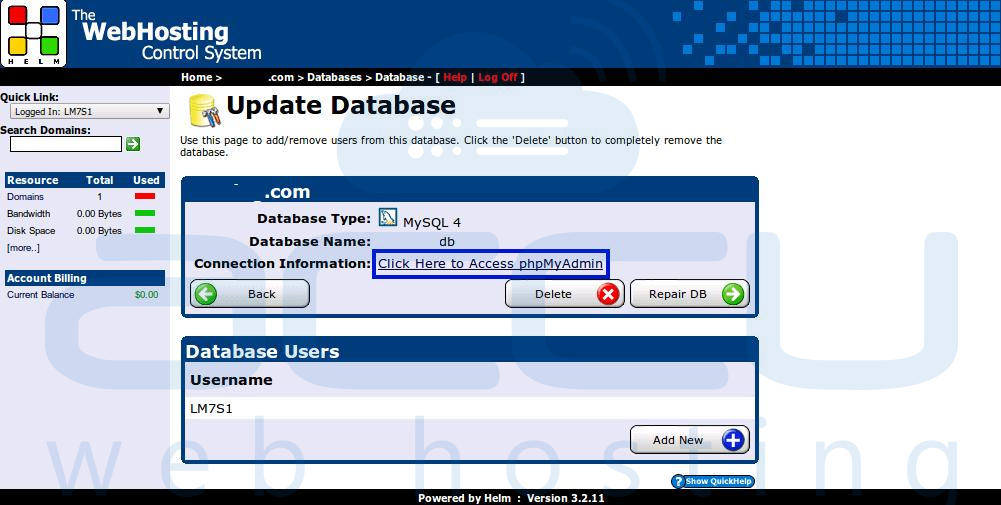
- You will be redirected to phpMyAdmin.
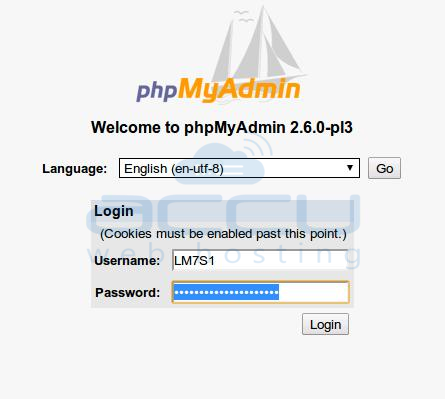
- Enter database username and password to open your database.
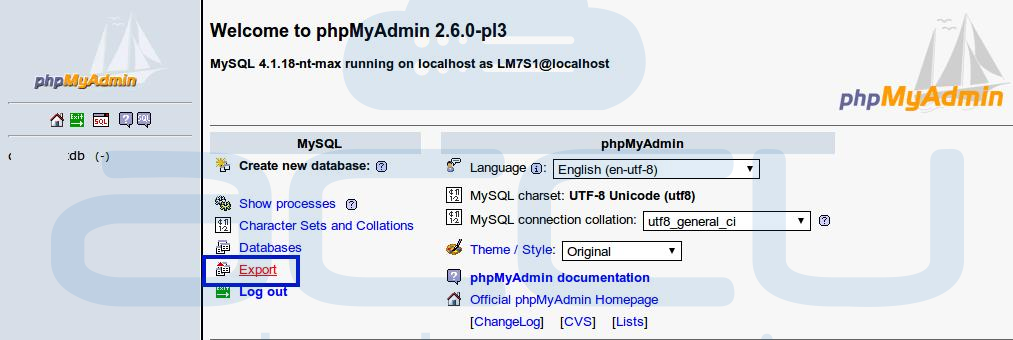
- Select Export option as displayed in following image:
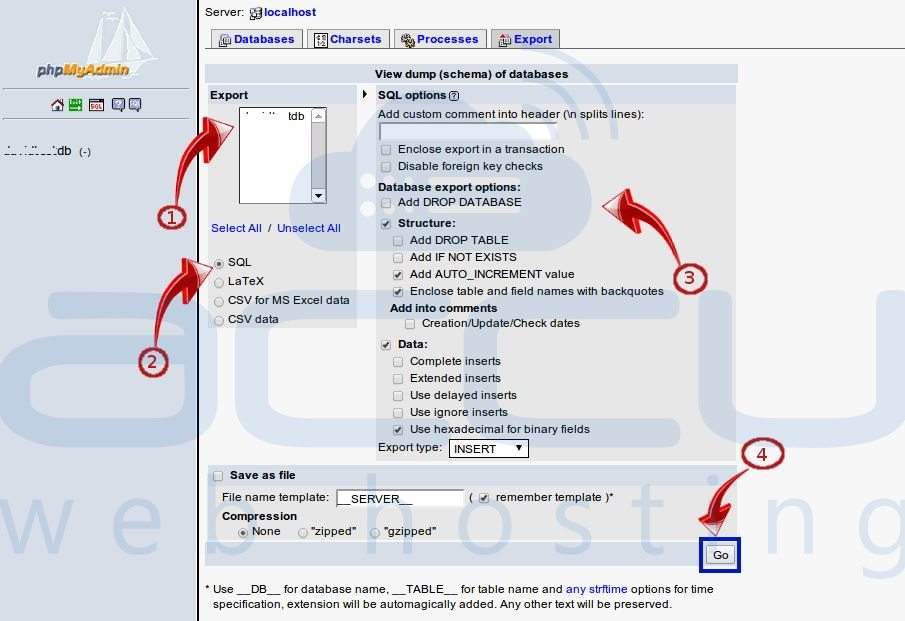
- Configure following options:
- Select Database names which you want to backup.
- Select Database backup format.
- Configure necessary options.
- Click on Go button to download backup of your database.
Dev License: This installation of WHMCS is running under a Development License and is not authorized to be used for production use. Please report any cases of abuse to abuse@whmcs.com
Most Popular Articles
How to create a database
How to create a temporary URL for a domain
Follow the below mentioned steps in order to create the temporary URL for your domain from the...
How to create an MSSQL database and its user
Steps to create an MSSQL database: Login to the HELM control panel URL. Click on the Domains....
How to create an email auto responder
Note: It is recommended to use email address validation service before starting an email...
How to create a sub-domain
Powered by WHMCompleteSolution