Once you receive Welcome Email OR VPS Login details, the first thing you should do is verify the VPS resources.
Follow below mentioned steps to verify VPS resources through Remote Desktop.
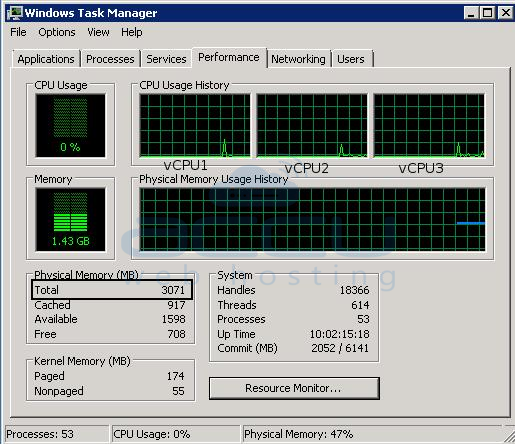
- Log into your VPS. Right click on Task Bar and select Start Task Manager option. Here, you can verify Virtual CPU and RAM allocated to your VPS under Performance tab.
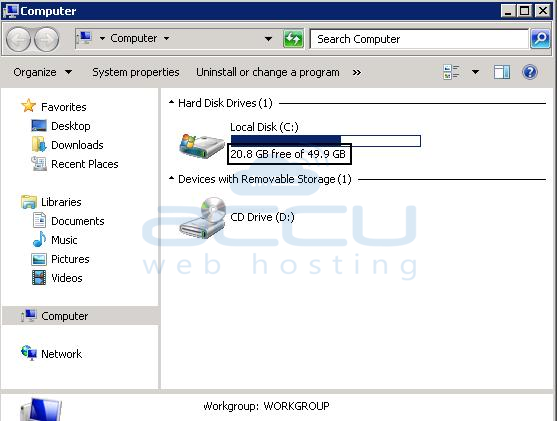
- Go to Start → Click on Computer. Here,you can verify the allocated Disk space.