
Following steps will guide you to open the ports for a specific IP address.
- Login to the server using RDP.
- Click on Start >> Administrative tools >> Windows Firewall with Advanced Security.
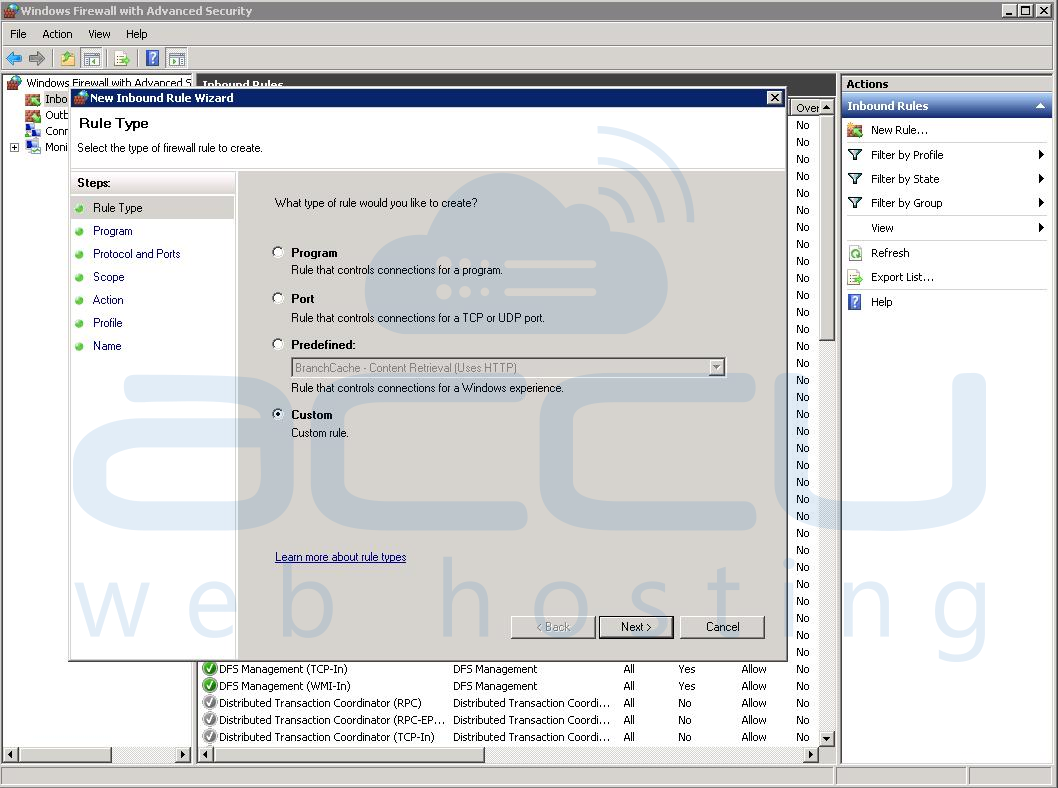
- Go to Inbound Rule >> New Rule
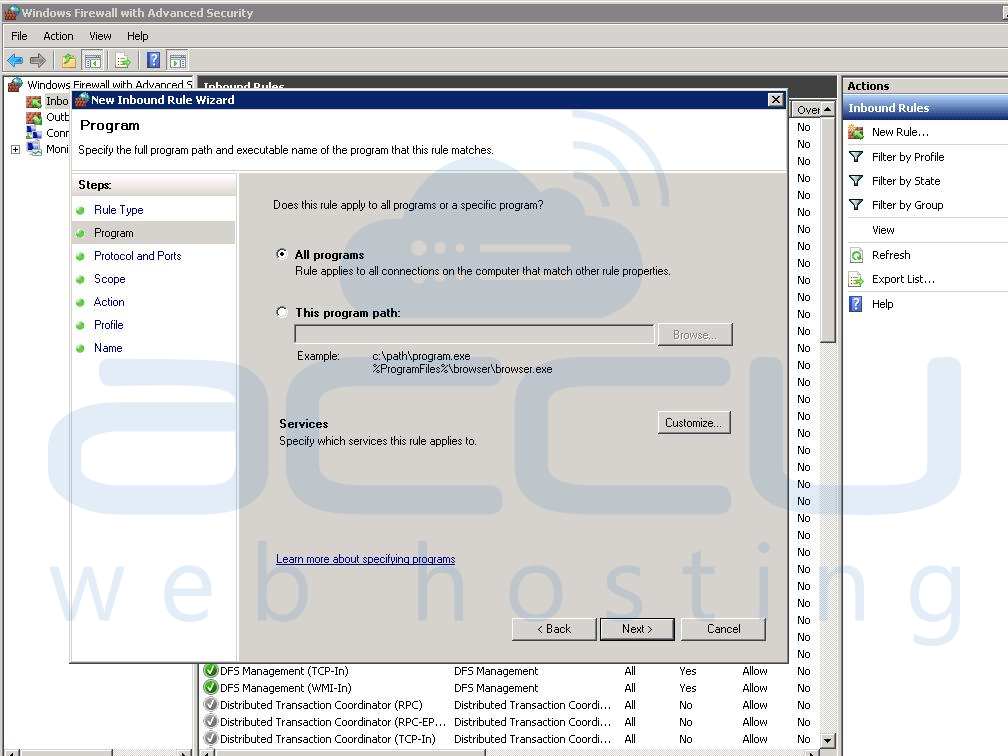
- Click on Custom and the next page select All Programmes.
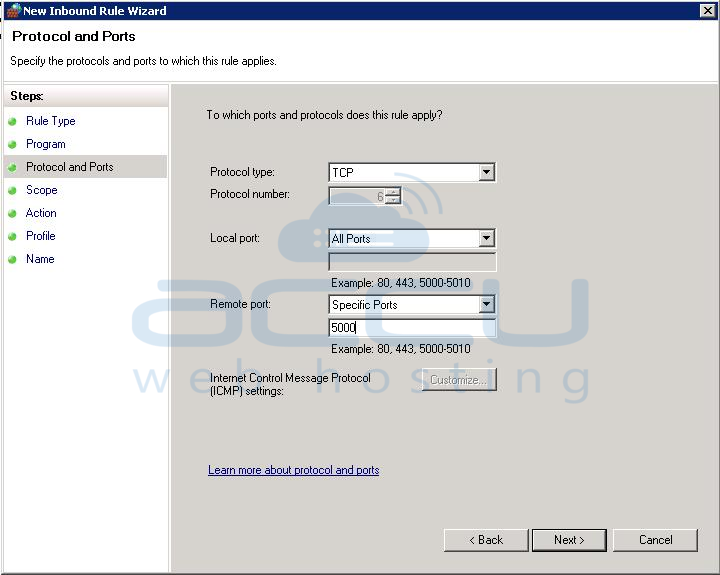
- You are at Protocol & Ports wizard.
- select the protocol type to the TCP.
- select the Specific Port option for the Remote Port and enter the port number and click Next.
- Here, we have used Non-standard RDP Port 5000.
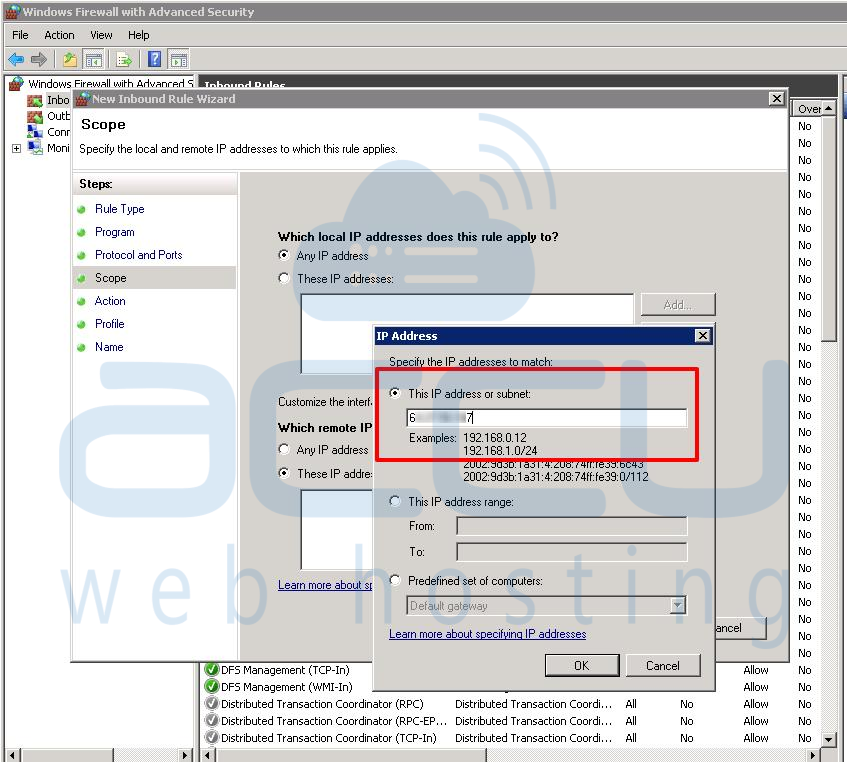
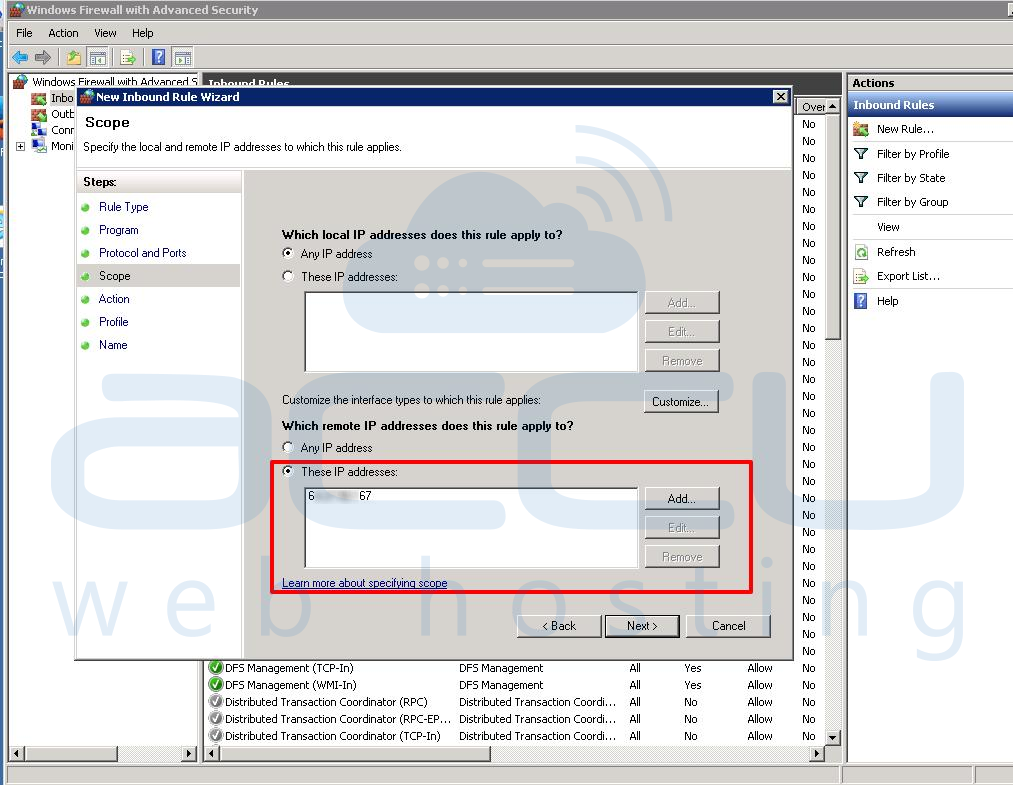
- You will need to enter the Remote IP Address by which you want to connect your port.
- Select These IP Address option for Remote IP Address.
- Click on the Add Button and enter the IP Address and click Ok and Next.
- Select Allow the connection option and click Next.
- On the Profile Page, select all three options. Domain, Private and Public.
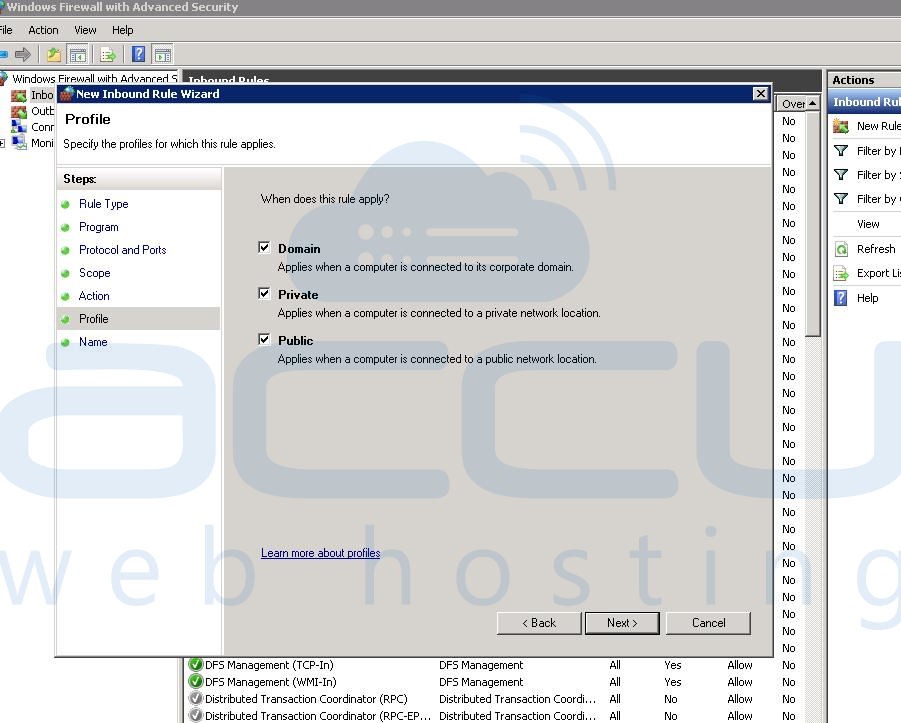
- Click Next Button.
- In the Last step, We need to provide the Name of this Rule. (eg. Remote Desktop)
- Click on the Finish Button.