
Backup:
- Login to your server by using administrative rights.
- Open command prompt using start → run → and type cmd.
- Navigate to below mentioned path:
- %SYSTEMROOT%\System32\inetsrv\
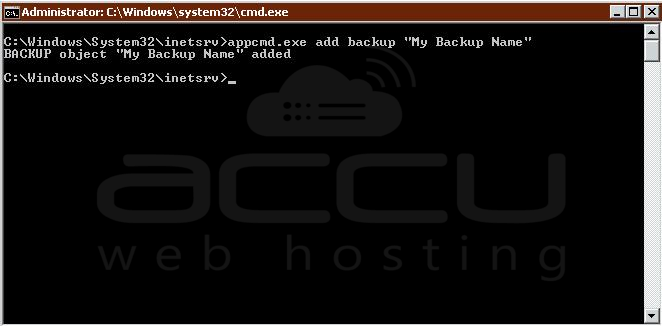
- Fire below mentioned command to save configuration backup:
- appcmd.exe add backup "My Backup Name"
Â
View available Backups:
- Login to your server by using administrative rights.
- Open command prompt using start → run → and type cmd.
- Navigate to below mentioned path:
- %SYSTEMROOT%\System32\inetsrv\
- Fire below mentioned command to view the list of available backups:
- appcmd.exe list backup

Â
Restore:
- Login to your server by using administrative rights.
- Open command prompt using start → run → and
- %SYSTEMROOT%\System32\inetsrv\
- type cmd.
- Navigate to below mentioned path:
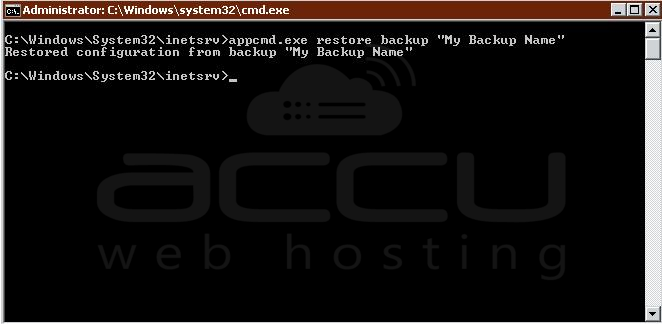
- Fire below mentioned command to restore the backup:
- appcmd.exe restore backup "My Backup Name"
Â
Delete Backup:
- Login to your server by using administrative rights.
- Open command prompt using start → run → and type cmd.
- Navigate to below mentioned path:
- %SYSTEMROOT%\System32\inetsrv\
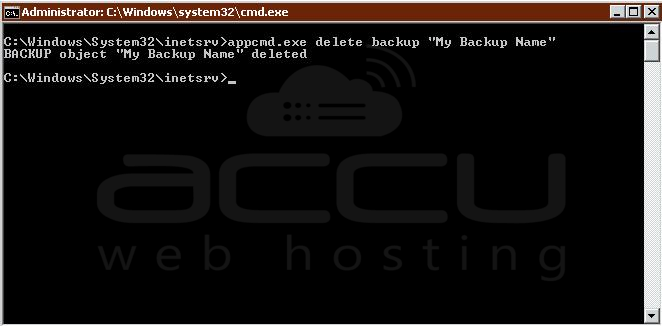
- Fire below mentioned command to remove the backup:
- appcmd.exe delete backup "My Backup Name"
Notes: